How to Add Subtitles in Final Cut Pro
Subtitles make your videos watchable on mute, more accessible and easier to search. Final Cut Pro 12.3 added Generate Captions, which transcribes your audio on-device, so adding captions is now much faster. Here's how to use it, plus the manual and SRT methods.
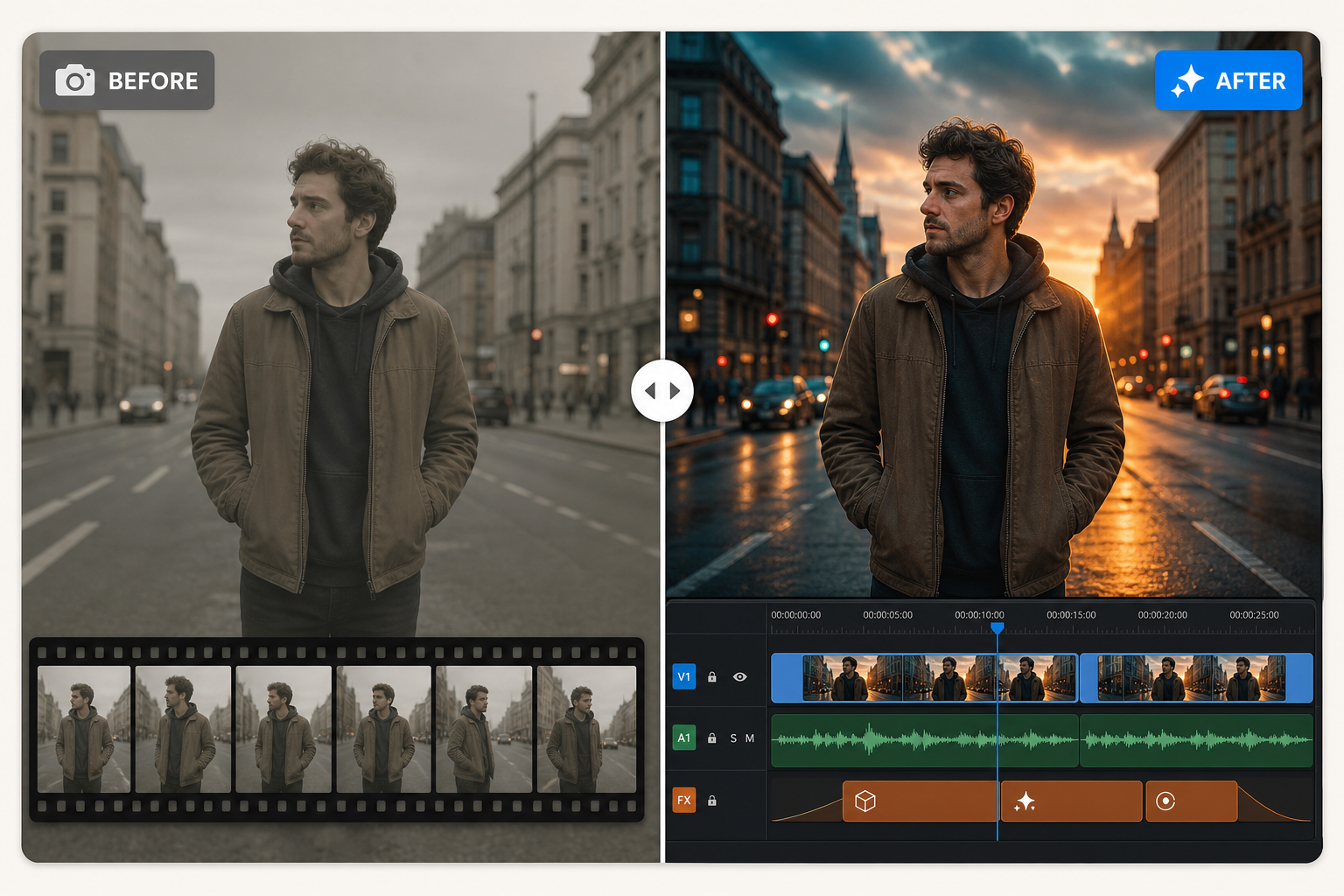
Three Ways to Add Subtitles
| Method | Best for |
|---|---|
| Generate Captions (automatic) | Most videos; fastest |
| Import an SRT file | Captions from a transcription service or translator |
| Manual captions | Short clips or precise control |
Method 1: Generate Captions
Finish your edit first
Caption after picture lock, so you don't have to retime captions later.
Generate captions
Select the clips or the whole timeline, then choose Generate Captions from the Edit → Captions menu. Pick the language and caption format.
Proofread
Open the Captions view and read every line. Fix names, brand terms, numbers and punctuation.
Adjust timing and line length
Split long captions and keep each to one or two short lines. Drag edges to fine-tune timing.
Method 2: Import SRT
- Choose File → Import → Captions.
- Select your .srt file and the target role and language.
- Check the captions line up with speech; nudge the whole set if needed.
Method 3: Add Captions Manually
- Place the playhead where speech starts.
- Choose Edit → Captions → Add Caption and type the text.
- Drag the caption edges to match the spoken line.
Styled Captions vs Closed Captions
- Closed captions (sidecar): exported as an SRT file that viewers can switch on or off. Upload it to YouTube with your video.
- Burned-in subtitles: part of the picture, essential for Reels and Shorts. Export with captions burned in, or build styled titles with Motion.
For vertical videos, use bold, high-contrast text, one or two words at a time, kept above the bottom area where platform buttons sit.
Need accurate captions on every video?Our editors caption, proofread and style them for you. Try a free sample.
Claim Your Free 60-Sec EditTips for Better Subtitles
- Clean up audio first; clearer audio gives better transcriptions.
- Keep a list of names and terms to check.
- Match style to your brand and other text; see how to make lower thirds in After Effects.
- Need captions outside Final Cut? Compare the best subtitle generator software.
Keep Learning Final Cut Pro
Captions sit on the timeline like connected clips, so it helps to understand how to use the magnetic timeline.
Captions are one of the easiest ways to improve watch time. A video editing company in Bangalore like EditAtEase can caption your videos accurately in your brand style.
Frequently Asked Questions
Does Final Cut Pro have automatic captions?
Yes. Final Cut Pro 12.3 added Generate Captions, which uses on-device AI to transcribe speech and create captions on your timeline.
How do I import an SRT file into Final Cut Pro?
Choose File, Import, Captions, select the SRT file and the language, then check the timing against the audio.
How do I burn subtitles into a video in Final Cut Pro?
When exporting, choose the option to burn in captions for the caption role you want, so the text becomes part of the picture.
Should I upload SRT or burn in captions for YouTube?
For long-form YouTube, upload an SRT so viewers can toggle captions. For Shorts and Reels, burned-in styled captions work better.
Stop Editing. Start Creating.
You record, we edit. EditAtEase turns your raw footage into scroll-stopping YouTube videos, Shorts, Reels and podcasts, so you post consistently and finally get your week back.