iMovie Tutorial: Free Editing on Mac and iPhone
iMovie is Apple's free video editor for Mac, iPhone and iPad. It's the easiest way for Apple users to start editing, and it can produce clean, professional-looking videos. Here's how to edit your first video on Mac and iPhone.
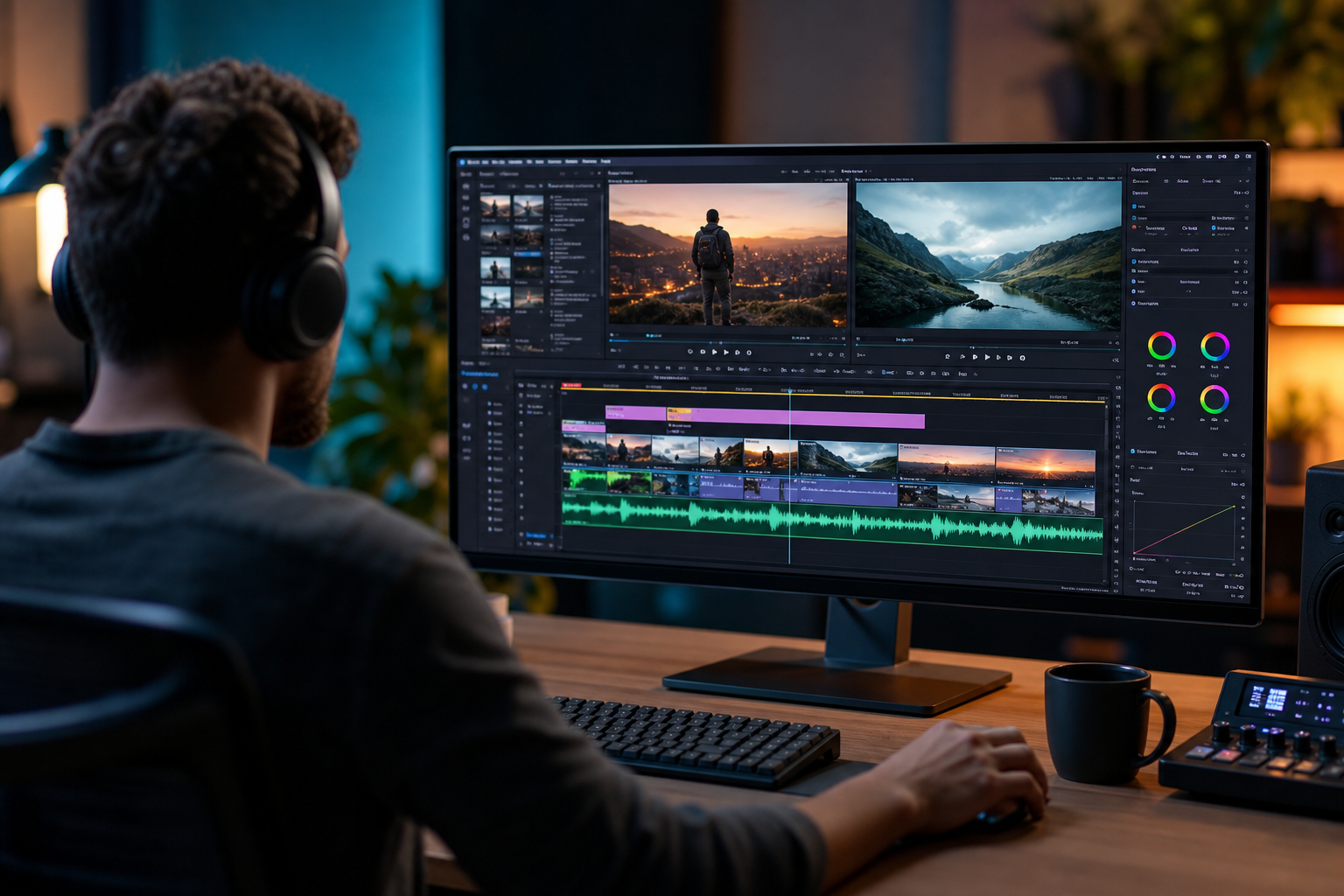
Editing on Mac
Create a project
Open iMovie, click Create New → Movie, and import clips with the Import button or by dragging files in.
Build the timeline
Drag clips from the browser to the timeline. Drag clip edges to trim, and press Cmd+B to split at the playhead.
Add B-roll and effects
Drag a clip above the main clip, then use the overlay menu for Cutaway, Picture in Picture, Side by Side or Green/Blue Screen.
Add titles and transitions
Open Titles and Transitions from the top bar and drag them in. Use cross dissolves sparingly.
Music and voiceover
Drag music below the clips, and use the microphone button to record voiceover. Lower music under speech.
Colour and audio fixes
Use Color Balance, Color Correction and Noise Reduction in the toolbar above the viewer.
Editing on iPhone
- Tap Start New Project → Movie (or Magic Movie / Storyboard for guided edits).
- Select clips and tap Create Movie.
- Tap a clip to trim, split, change speed, add filters or titles.
- Tap + to add music, voiceover or more clips.
Export Settings
| Platform | Setting |
|---|---|
| YouTube | Share → File → 1080p or 4K, High quality |
| 1080p; note iMovie projects are 16:9, so plan vertical edits elsewhere | |
| iPhone sharing | Save Video at the highest resolution |
iMovie is built around 16:9. For Reels and Shorts, a vertical-friendly app is easier; see best video editing app for iPhone.
Ready for more than iMovie can do?Our editors deliver polished YouTube and brand videos. Try a free 60-second edit.
Claim Your Free 60-Sec EditWhen to Upgrade
Move on when you need multi-track editing, keyframes, advanced colour or captions. Final Cut Pro is the natural next step for Mac users and can open iMovie projects; see Final Cut Pro for beginners and Final Cut Pro price in India. For more options, read best video editing software for Mac and best video editing software for beginners.
When you make the jump, our Final Cut Pro tutorial walks you through a full edit.
iMovie is a great place to start. When your videos need a professional finish, a video production company in Bangalore like EditAtEase can take it from there.
Frequently Asked Questions
Is iMovie free?
Yes. iMovie is free on Mac, iPhone and iPad.
Can I make vertical videos in iMovie?
iMovie projects are 16:9 by default, so vertical videos are awkward. Apps like Premiere mobile, VN or InShot handle 9:16 more easily.
Does iMovie add a watermark?
No. iMovie exports without any watermark.
Can I move an iMovie project to Final Cut Pro?
Yes. Final Cut Pro can import iMovie projects, so you can continue editing with more advanced tools.
Stop Editing. Start Creating.
You record, we edit. EditAtEase turns your raw footage into scroll-stopping YouTube videos, Shorts, Reels and podcasts, so you post consistently and finally get your week back.