How to Crop a Video for Any Platform
A horizontal YouTube video needs to become a vertical Reel. A messy edge needs to disappear. A wide shot needs to feel closer. All of these come down to cropping. It's a simple edit, but doing it badly leads to blurry footage or awkward framing. Here's how to crop a video properly on any device.
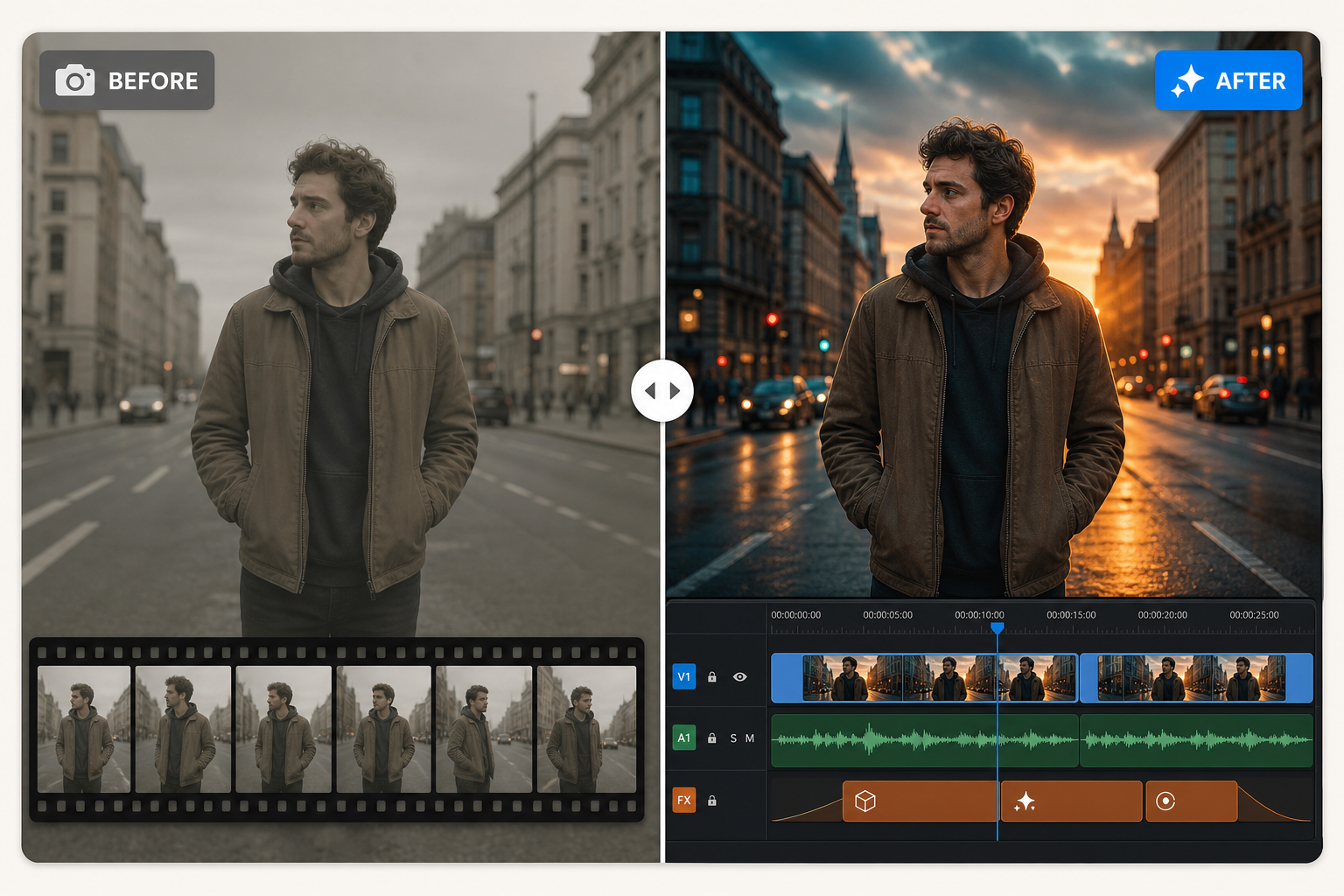
What Does Cropping a Video Mean?
Cropping removes part of the picture, such as the edges, so only a chosen area is visible. It doesn't change the video's length; that's trimming. People often mix up related terms:
| Term | What it changes | Example |
|---|---|---|
| Crop | Removes part of the frame | Cutting off a microphone visible at the edge |
| Reframe | Changes the aspect ratio and repositions the subject | Turning a 16:9 video into 9:16 for Reels |
| Resize / scale | Makes the image bigger or smaller in the frame | Zooming in 110% for a punch-in |
| Trim | Changes duration, not the frame | Removing the first 5 seconds |
Confused by other editing jargon? Our glossary of video editing terms for beginners covers aspect ratio, resolution, scaling and more.
Aspect Ratios You'll Crop To Most
| Platform / use | Aspect ratio | Common resolution |
|---|---|---|
| YouTube, websites, TV | 16:9 | 1920×1080 or 3840×2160 |
| Reels, YouTube Shorts, Stories | 9:16 | 1080×1920 |
| Instagram / LinkedIn feed portrait | 4:5 | 1080×1350 |
| Square posts | 1:1 | 1080×1080 |
| Cinematic widescreen look | 2.39:1 (letterboxed in 16:9) | 1920×1080 with bars |
Will Cropping Reduce Quality?
Yes, if you crop and then scale the result back up. Cropping a 1080p horizontal video to vertical keeps only a slice about 608 pixels wide, which then gets stretched to 1080 pixels wide, so it looks soft. Ways to avoid this:
- Shoot in 4K if you plan to crop for vertical or punch-ins. A 9:16 slice of 4K footage is still sharp at 1080×1920.
- Frame with cropping in mind: keep your subject near the centre with space around them.
- Crop less, reposition more: sometimes moving the frame is enough.
Stabilising footage also zooms in to hide moving edges. If you plan to stabilise and crop, shoot wider. See how to stabilise shaky video.
How to Crop a Video on iPhone and Android
iPhone
- Open the video in Photos and tap Edit.
- Tap the Crop icon.
- Choose an aspect ratio preset (such as 9:16 or square) or drag the corners freely.
- Drag the video inside the frame to reposition, then tap Done.
Android
- Open the video in Google Photos and tap Edit.
- Select Crop, choose an aspect ratio or drag the corners.
- Tap Save copy.
How to Crop a Video on Windows and Mac
- Windows (Clipchamp): add the clip to the timeline, select it and use the Crop tool in the toolbar or properties panel. To change format, set the project's aspect ratio (e.g., 9:16) and reposition the clip.
- Mac (iMovie): select the clip, click the Crop button above the viewer, choose Crop to Fill, adjust the frame and click the checkmark.
How to Crop a Video in Premiere Pro
Method 1: Crop effect (remove edges)
Apply the Crop effect
In the Effects panel, search "Crop" and drag it onto your clip.
Set the crop values
In Effect Controls, adjust Left, Top, Right and Bottom percentages. Use Edge Feather for soft edges if needed.
Scale and position
Increase Scale under Motion to fill the frame again, and adjust Position to reframe your subject.
Method 2: Change aspect ratio (horizontal to vertical)
- Create a new sequence (or duplicate yours) and set the frame size to 1080×1920 in Sequence Settings.
- Place your horizontal clip in it and scale or reposition to fill the vertical frame.
- Keyframe Position if your subject moves.
Method 3: Auto Reframe (fastest for social)
Right-click a sequence in the Project panel and choose Auto Reframe Sequence. Pick a target aspect ratio and motion tracking speed; Premiere creates a new sequence that follows the action automatically. Review it, since it can misjudge who to follow in multi-person shots.
If you're new to Premiere's panels and sequences, our Premiere Pro for beginners guide explains the interface, and our Adobe Premiere Pro tutorial walks through a full edit.
Need one video cut into 16:9, 9:16 and 4:5 versions?We reframe and export for every platform. Start with a free 60-second edit.
Claim Your Free 60-Sec EditHow to Crop in DaVinci Resolve
- Select the clip and open the Inspector.
- Under Cropping, adjust Left, Right, Top and Bottom.
- To change the whole project to vertical, set the timeline resolution to 1080×1920 in Timeline Settings, then reposition clips with Zoom and Position.
How to Crop With FFmpeg
To cut a centred vertical slice from a 4K horizontal video:
ffmpeg -i input.mp4 -vf "crop=1215:2160,scale=1080:1920" output.mp4
FFmpeg's crop filter centres the area by default; add x and y values to position it elsewhere.
Cropping Tips for Better Framing
- Keep eyes in the upper third of the frame for talking heads.
- Leave headroom but not too much; vertical videos often crop tighter than horizontal ones.
- Leave room for text and platform buttons, especially in 9:16. Subtitles need space too; see how to add subtitles in Premiere Pro.
- Use cropping for cinematic letterboxing, a common technique in our guide on how to make a video look cinematic.
- Crop consistently across clips in the same scene so framing doesn't jump.
Cropping in a Multi-Platform Workflow
Brands and creators now publish one video in several formats. A tidy project makes that manageable: keep a master 16:9 edit, then separate sequences for 9:16 and 4:5. Label them clearly (our guide on organising footage before editing includes naming conventions), and use the right export presets for each (see how to export video in Premiere Pro). If your reframed clips include interviews, also clean the audio with our guide on removing background noise from video.
Reframing every video for every platform is repetitive work. A video production company in Bangalore like EditAtEase can deliver platform-ready versions of each video so you post everywhere without extra editing time.
Frequently Asked Questions
How do I crop a video on my iPhone?
Open the video in Photos, tap Edit, tap the Crop icon, choose an aspect ratio or drag the corners, reposition the video and tap Done.
How do I crop a video in Premiere Pro?
Apply the Crop effect from the Effects panel, set the Left, Top, Right and Bottom values in Effect Controls, then use Scale and Position under Motion to fill and reframe the shot.
How do I change a horizontal video to vertical?
Create a 9:16 project or sequence at 1080×1920, place your horizontal clip in it and scale or reposition it to fill the frame. In Premiere Pro, Auto Reframe Sequence can do this automatically.
Does cropping a video reduce quality?
Cropping removes pixels, so if the cropped area is scaled back up to full size it can look soft. Shooting in 4K gives you room to crop a sharp 1080p result.
What is the difference between cropping and trimming a video?
Cropping removes part of the picture, such as the edges of the frame. Trimming removes time from the start, middle or end of the video.
Stop Editing. Start Creating.
You record, we edit. EditAtEase turns your raw footage into scroll-stopping YouTube videos, Shorts, Reels and podcasts, so you post consistently and finally get your week back.