How to Make a Video Look Cinematic
"Cinematic" isn't one filter or one expensive camera. It's a combination of decisions, some made while shooting and some in the edit, that make video feel like film rather than home footage. Get a handful of them right and even phone footage can look surprisingly filmic. Here's what actually creates the look.
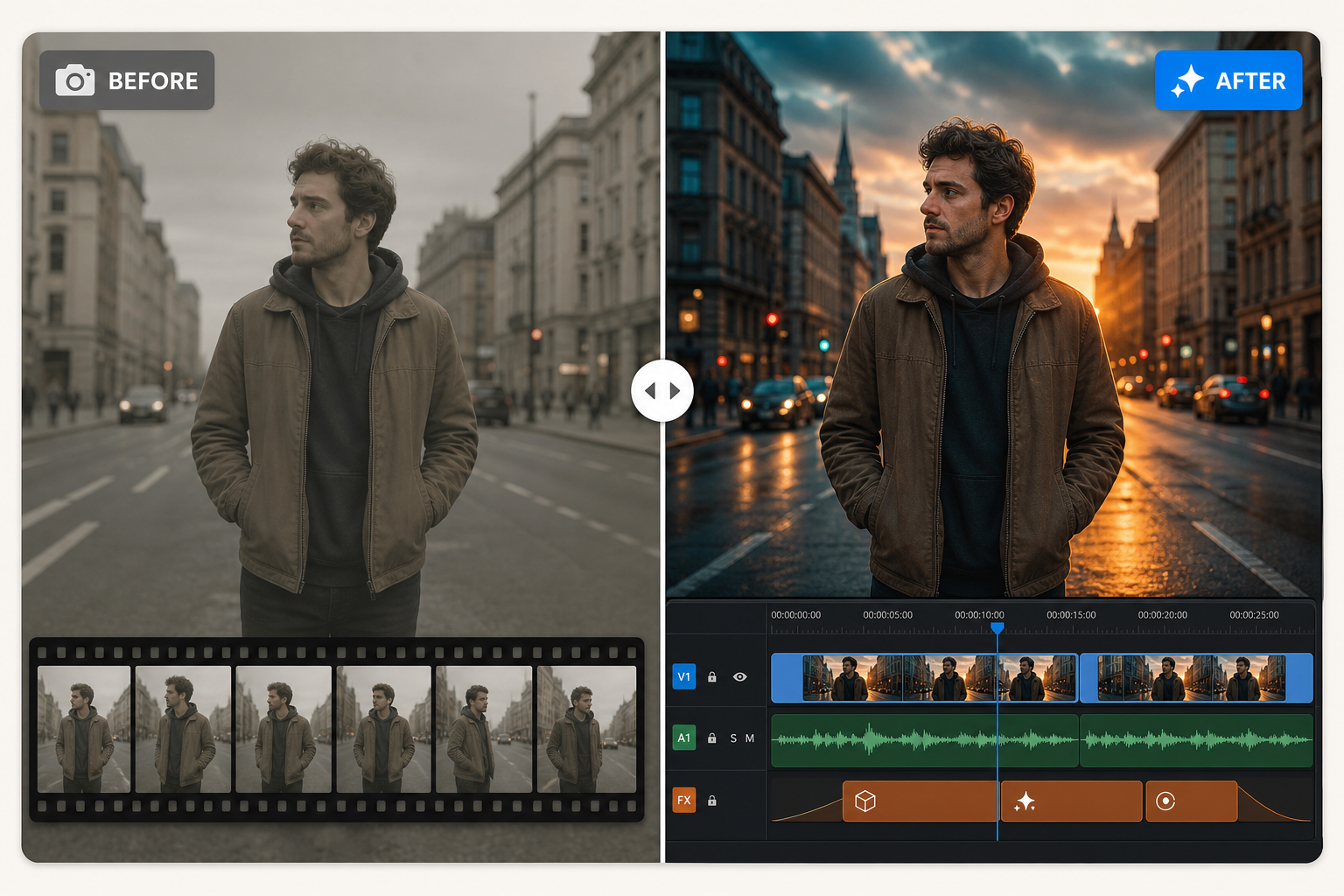
What Makes Video Look "Cinematic"?
When people call a video cinematic, they're usually reacting to a mix of qualities:
| Element | Home-video look | Cinematic look |
|---|---|---|
| Motion | 30/60 fps, very crisp and "smooth" | 24 fps with natural motion blur |
| Focus | Everything sharp | Shallow depth of field, subject separated from background |
| Light | Flat, overhead, evenly lit | Directional, contrasty, motivated light |
| Framing | Subject centred by default | Deliberate composition, negative space, depth |
| Camera movement | Shaky or random | Slow, smooth, purposeful |
| Colour | Straight out of camera | Graded with a consistent palette and mood |
| Sound | Camera mic only | Clean dialogue, music, sound design |
| Pacing | Uniform | Shots held with intention; rhythm varies with emotion |
Part 1: Shooting Techniques
1. Shoot at 24 or 25 fps
Film has traditionally been shot at 24 frames per second, and audiences associate that slightly softer motion with cinema. In India, 25 fps is also common and looks similar. Save 60 fps and above for footage you plan to slow down.
2. Follow the 180-degree shutter rule
Set your shutter speed to roughly double your frame rate: 1/50 for 24 or 25 fps. This gives natural motion blur. Faster shutters make motion look choppy and "video-like".
3. Control light (and use ND filters outdoors)
Keeping a 1/50 shutter in bright sunlight overexposes your image, so cinematographers use ND (neutral density) filters, essentially sunglasses for the lens. Indoors, use one main light from the side (a window works) for shape and contrast, and turn off flat overhead lights.
4. Create shallow depth of field
A wide aperture (low f-number such as f/1.8 or f/2.8), a longer lens and more distance between subject and background blur the background and draw focus to your subject. On phones, portrait or "Cinematic" video modes simulate this.
5. Compose deliberately
- Rule of thirds: place eyes and key subjects on third lines.
- Depth: include foreground, subject and background layers.
- Leading lines: roads, corridors and railings guide the eye.
- Negative space: empty areas create mood and room for text.
6. Move the camera with purpose
Slow push-ins, gentle slides, reveals and steady tracking shots feel cinematic; random handheld wobble doesn't. Use a gimbal or slider, or stabilise in post (see how to stabilise shaky video). Every movement should have a reason: revealing information, following action or building tension.
7. Shoot in a flat or log profile (if available)
Log or flat picture profiles preserve more highlight and shadow detail, giving you more room to grade. They look washed out until colour-corrected.
Lock exposure and focus, use your phone's Pro/Manual video mode to set 24 or 25 fps and a 1/50 shutter where possible, shoot near a window, and move slowly. These alone make a visible difference.
Part 2: Editing Techniques
8. Colour correct, then colour grade
First fix white balance, exposure and contrast so shots match. Then grade for mood: teal-and-orange for blockbuster energy, warm and soft for nostalgia, desaturated and cool for drama. In Premiere Pro, use Lumetri Color and the new Color Mode workspace, which Adobe added in November 2026 as a colour grading workspace built for editors. Our Adobe Premiere Pro tutorial covers the colour basics.
| Grade style | Mood | Good for |
|---|---|---|
| Teal and orange | Energetic, blockbuster | Travel, action, brand films |
| Warm, soft contrast | Nostalgic, intimate | Weddings, family stories, food |
| Cool, desaturated | Serious, moody | Documentaries, drama, tech |
| High-contrast black and white | Timeless, dramatic | Portraits, music videos |
| Film emulation (grain, halation) | Analog, textured | Fashion, lifestyle, music |
9. Add letterbox bars (2.39:1)
Black bars at the top and bottom instantly suggest widescreen cinema. Add a crop or matte to create a 2.39:1 frame inside 16:9, and reposition shots so nothing important is cut off. Our guide on how to crop a video explains how. Use bars intentionally; they don't suit vertical social content.
10. Edit with rhythm
- Hold emotional shots longer; cut faster in action.
- Use J-cuts and L-cuts so sound leads or trails pictures.
- Cut on motion to hide edits.
- Use slow motion sparingly for emphasis.
11. Design the sound
Sound is half the cinematic experience. Clean dialogue (see how to remove background noise from video), layer ambience such as birds, traffic or room tone, add subtle effects for movement, and choose music that supports emotion without overpowering it.
12. Add subtle finishing touches
- Film grain: a light layer adds texture and hides compression.
- Vignette: gently darkened edges focus the eye.
- Minimal, elegant titles: thin, well-spaced type rather than bold animated captions. For subtitles in this style, see how to add subtitles in Premiere Pro.
Want your brand videos to feel like films, not phone clips?Our editors grade, design sound and pace for a cinematic finish. Try a free sample.
Claim Your Free 60-Sec EditCinematic Mistakes to Avoid
- Over-grading: orange skin and crushed blacks look cheap, not filmic.
- Letterboxing everything, including vertical videos and talking-head tutorials.
- Too much slow motion: it loses impact quickly.
- Ignoring audio: beautiful visuals with tinny sound break the illusion.
- Converting 30 fps to 24 fps in editing: this causes stutter. Shoot at 24/25 fps instead.
- Style over story: cinematic techniques serve the story; they can't replace it.
Cinematic Trends in 2026
- Documentary-style YouTube: long-form creators are moving toward cleaner, cinematic, story-driven edits.
- Phone cinema: log recording and better sensors on flagship phones make filmic footage more accessible.
- Film emulation: grain, halation and analog colour palettes are popular in fashion and lifestyle content.
- Editor-friendly grading tools: built-in colour workspaces mean editors grade without leaving their timeline.
Putting It Together
A cinematic edit relies on organised footage (see how to organise footage before editing), careful colour and sound, and high-quality delivery. Export with a high bitrate so compression doesn't destroy your grade; our guide on how to export video in Premiere Pro covers the settings. If you're just getting started with the software, read Premiere Pro for beginners, and check our glossary of video editing terms for beginners for words like "log", "LUT" and "grade".
For brand films, launches and premium social content, a video production agency in Bangalore like EditAtEase brings shooting, grading and sound design together so your videos look cinematic from the first frame.
Frequently Asked Questions
What frame rate makes video look cinematic?
24 frames per second is the traditional cinema frame rate, and 25 fps looks very similar and is common in India. Pair it with a shutter speed of about 1/50 for natural motion blur.
What is the 180-degree shutter rule?
It means setting your shutter speed to roughly double your frame rate, such as 1/50 for 24 or 25 fps. This produces natural-looking motion blur similar to film.
How do I make phone videos look cinematic?
Shoot at 24 or 25 fps in a Pro or manual mode if available, lock exposure and focus, use side light from a window, move the camera slowly with a gimbal, then colour grade and add good sound design in editing.
Do black bars make a video cinematic?
Letterbox bars that create a 2.39:1 widescreen frame can suggest cinema, but they work best with cinematic shooting and grading. They are not suitable for vertical social videos or most tutorials.
What is colour grading?
Colour grading is the creative stage of colour work, where you give footage a consistent look and mood after first correcting white balance and exposure. It's one of the biggest contributors to a cinematic feel.
Stop Editing. Start Creating.
You record, we edit. EditAtEase turns your raw footage into scroll-stopping YouTube videos, Shorts, Reels and podcasts, so you post consistently and finally get your week back.