How to Edit a Talking Head Video That Holds Attention
Talking head videos (one person speaking to camera) power YouTube education, podcasts, coaching, courses and business content. They're simple to shoot but easy to make boring. The edit is what keeps them moving.
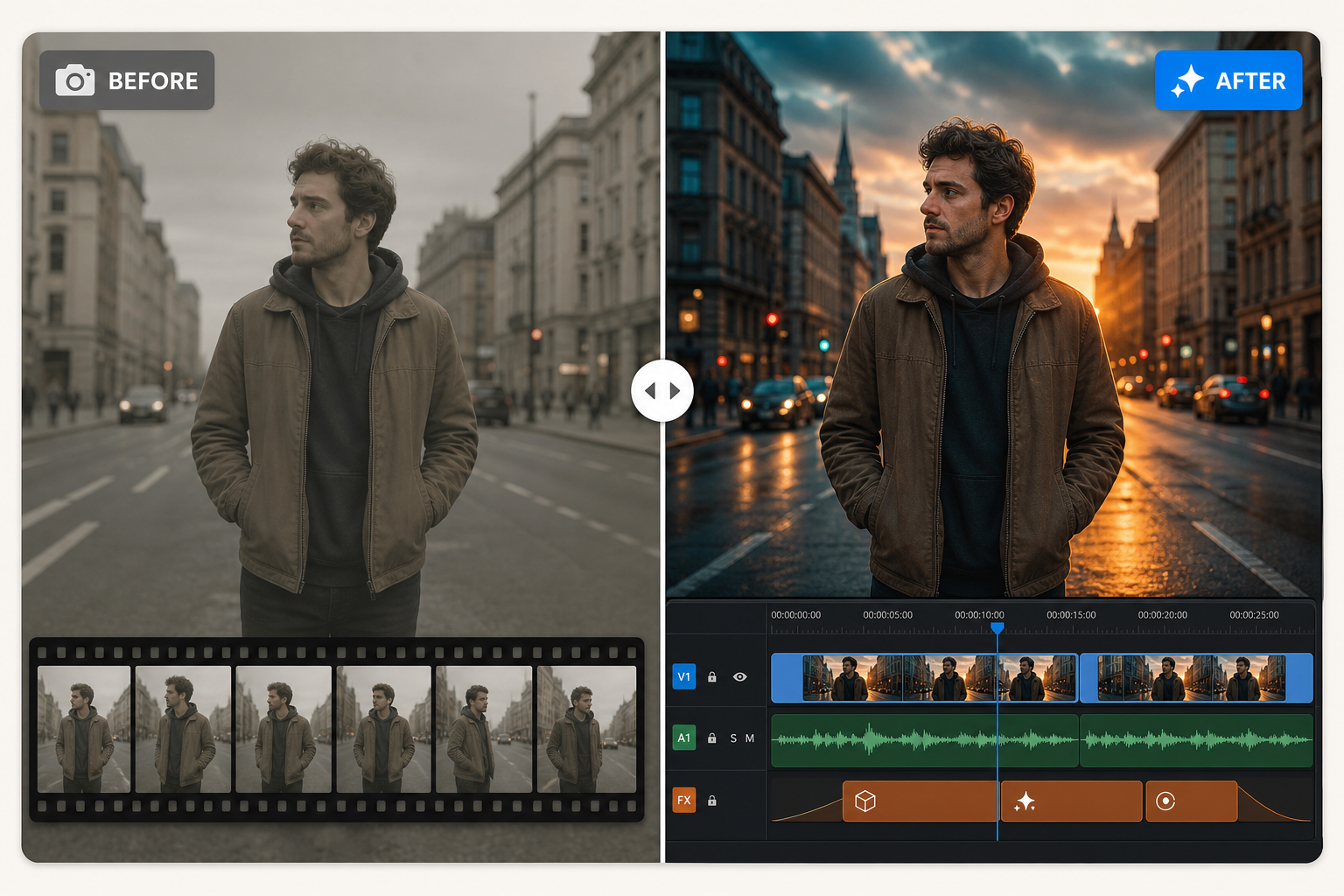
Step 1: Choose the Best Takes
- Watch through once and mark the best delivery of each point.
- Use the script or outline as your guide; see how to write a YouTube video script.
- Delete false starts and repeated takes.
Step 2: Tighten With Jump Cuts
Remove pauses, "umms" and filler using jump cuts. Leave natural breathing room; over-cutting makes speech feel robotic.
Step 3: Add Visual Variety
| Technique | When to use |
|---|---|
| Punch-in zoom (10 to 20%) | To hide jump cuts and emphasise key lines |
| Second camera angle | To switch between wide and close shots |
| B-roll | Whenever you describe something visual |
| On-screen text | Key points, numbers, lists |
| Graphics and screen recordings | Examples, data, demos |
Step 4: Fix the Audio
- Remove background noise and room echo; see how to remove background noise from video.
- Apply EQ and compression for a clear, consistent voice.
- Keep music very low or absent under speech.
Step 5: Colour and Captions
- Correct white balance so skin tones look natural.
- Add captions for silent viewing and accessibility.
- Add a lower third with your name and title on first appearance.
In most talking head videos, something should change on screen at least every 10 seconds: a cut, zoom, graphic or B-roll shot. See how to increase audience retention on YouTube.
Recorded a talking head video?We'll edit it into a tight, engaging video. Try a free 60-second edit.
Claim Your Free 60-Sec EditAdapt for the Format
- YouTube education: more graphics and examples; see how to edit an educational video.
- Reels and Shorts: faster cuts and bold captions; see how to make a talking head Reel.
- Courses: calmer pacing, chapters and slides.
- Business videos: branded lower thirds and clean design.
Talking head videos are our most-requested edit. A video editing agency in India like EditAtEase turns raw talking footage into engaging videos for creators and brands.
Frequently Asked Questions
How do you make a talking head video interesting?
Cut pauses with jump cuts, add punch-in zooms, B-roll, on-screen text and graphics, clean up the audio and add captions.
What is a punch-in zoom?
A sudden 10 to 20% zoom on the same shot, used to hide jump cuts and emphasise important lines.
Should I use music in a talking head video?
Light background music can help, but keep it very low under speech. Many educational videos work well with little or no music.
Do I need two cameras for talking head videos?
No. One camera works well with punch-in zooms, though a second angle adds variety.
Stop Editing. Start Creating.
You record, we edit. EditAtEase turns your raw footage into scroll-stopping YouTube videos, Shorts, Reels and podcasts, so you post consistently and finally get your week back.