How to Merge Videos Into One Seamless Clip
Recorded your video in five parts? Want to turn a dozen clips into one Reel or stitch a compilation together? Merging videos is simple once you know the right tool for your device. The real skill is making the joins feel seamless, so this guide covers both.
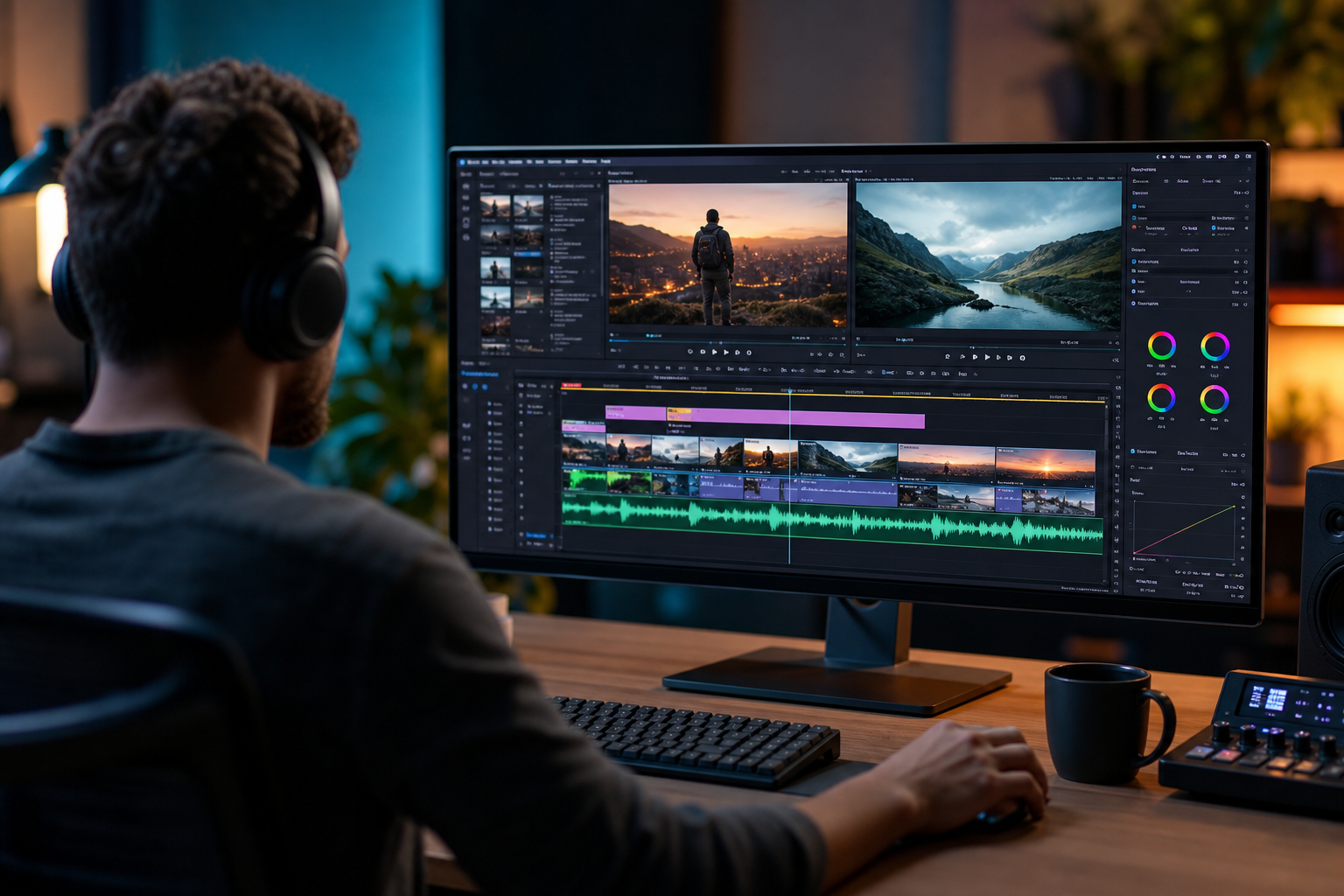
What Does Merging Videos Mean?
Merging videos means combining two or more clips into a single video file, usually one after another in sequence. It's also called joining, combining or stitching clips.
There are two types of merging:
- Sequential merging: clips play one after another. This is what most people mean.
- Spatial merging: clips play at the same time in a split screen or picture-in-picture layout.
This guide focuses on sequential merging, with a section on split screens at the end.
Before You Merge: Prepare Your Clips
Most merge problems (black bars, stutter, audio jumps) come from clips that don't match. Check these first:
| Setting | Why it matters | What to do |
|---|---|---|
| Aspect ratio | Mixing vertical and horizontal clips creates black bars | Choose one format and crop or reframe the others |
| Resolution | Lower-resolution clips look soft next to sharp ones | Set the project to your main resolution, often 1080p |
| Frame rate | Mixing 30 and 60 fps can cause stutter | Use the frame rate most of your clips were shot in |
| Audio levels | Volume jumps between clips are jarring | Normalize or adjust each clip's volume |
| Color | Different lighting makes clips look disconnected | Apply light color correction to match them |
Also trim each clip before merging, removing the shaky starts and ends so the joins are clean.
How to Merge Videos on iPhone
The Photos app can't combine clips, but iMovie (free from Apple) can:
- Open iMovie and start a new Movie project.
- Select all the clips you want to merge, in order, and tap Create Movie.
- Reorder clips by long-pressing and dragging on the timeline.
- Tap the small icon between clips to choose a transition or set it to none.
- Tap Done, then the share button and Save Video.
Instagram Edits and VN also merge clips easily and are better suited to vertical content.
How to Merge Videos on Android
- Open an editor such as Instagram Edits, VN, InShot or YouTube Create.
- Start a new project and select your clips in the order you want them.
- Adjust the order on the timeline if needed.
- Trim the joins, add transitions if you want them, then export.
Google Photos can also create simple movies from several clips through its creation tools, though options vary by app version.
How to Merge Videos on Windows
- Open Clipchamp (built into Windows 11) and create a new video.
- Import all your clips into the media library.
- Drag them onto the timeline in order. Clipchamp places them back to back automatically.
- Remove any gaps, check audio levels, and export as a single file.
How to Merge Videos on Mac
QuickTime Player can join clips with no extra software:
- Open the first video in QuickTime Player.
- Choose Edit → Add Clip to End and select the next video.
- Repeat for each clip; drag thumbnails to reorder.
- Choose File → Export As and pick a resolution.
For transitions, music or titles, use iMovie or a full editor.
How to Merge Videos in Premiere Pro or DaVinci Resolve
Create a sequence or timeline with the right settings
Match resolution and frame rate to your main footage. In both editors, dragging your first clip into an empty timeline can create matching settings automatically.
Add clips in order
Drag clips onto the timeline back to back, or select them all in the bin and drag them together. They'll be placed in the order selected.
Close gaps and refine the joins
Ripple delete any gaps. Fine-tune each edit point so cuts land on movement, a sentence end or a music beat.
Smooth the audio
Add short audio crossfades at each join and balance levels. For speech, consider J-cuts and L-cuts so audio flows across the join.
Export as one file
Export the whole timeline as a single MP4 (H.264) at your project resolution.
Lossless Merging With FFmpeg
If your clips come from the same camera with identical settings (same codec, resolution and frame rate), you can join them without re-encoding, which is fast and keeps full quality. Create a text file listing the clips:
file 'part1.mp4'file 'part2.mp4'
Then run:
ffmpeg -f concat -safe 0 -i list.txt -c copy merged.mp4
If the clips have different settings, this method will fail or produce glitches; use an editor that re-encodes instead.
Got dozens of clips and no time to stitch them together?Send them over. We'll turn them into one polished video, starting with a free sample.
Claim Your Free 60-Sec EditHow to Make Merged Clips Feel Seamless
- Cut on action. Join clips mid-movement (a turn, a step, a hand gesture) so the eye follows the motion across the cut.
- Match shapes or colors. A match cut between similar compositions makes a merge feel intentional.
- Use music to tie clips together. One continuous track across all clips hides the joins.
- Hide awkward joins with B-roll. A short B-roll shot over the join smooths it out. Our guide on using B-roll in videos shows how.
- Avoid flashy transitions. Straight cuts look professional; save dissolves for time passing.
- Embrace the jump. For same-angle clips, a deliberate jump cut can look stylish rather than sloppy.
Creative Ideas for Merged Videos
| Idea | How to do it |
|---|---|
| Travel montage | Merge 1 to 2 second clips cut to the beat of a song |
| Before-and-after | Merge the "before" clip with a sped-up process and the "after" reveal |
| Highlight reel | Merge your best moments with slow motion on the peaks |
| Rewind loop | Merge a clip with its reversed copy for a boomerang effect |
| Listicle video | Merge one clip per item with a numbered title on each; see how to add text to a video |
Bonus: Merging Videos Side by Side
To show two clips at once, place them on separate video tracks, then scale and position each one to fill half the frame. In vertical videos, stacking clips top and bottom works best. This is popular for reaction videos, comparisons and duets.
Common Merging Mistakes
- Mixing vertical and horizontal clips without reframing
- Leaving tiny gaps that flash black between clips
- Sudden volume changes between clips
- Different color temperatures that make clips feel unrelated
- Exporting at the lowest clip's resolution instead of your main resolution
Merging a few clips is easy. Turning a full day of footage from multiple cameras into one coherent, on-brand video is a different job. Brands and creators often bring in a video production agency in Bangalore like EditAtEase for exactly that kind of multi-clip, multi-format editing.
Frequently Asked Questions
How do I merge videos on my iPhone?
Use iMovie, which is free from Apple. Start a new Movie project, select your clips in order, tap Create Movie, adjust the order and transitions if needed, then save the finished video.
How can I combine videos on Windows for free?
Open Clipchamp, which is built into Windows 11, import your clips, drag them onto the timeline in order, remove any gaps and export the timeline as one video.
How do I merge videos on a Mac without extra software?
Open the first clip in QuickTime Player, choose Edit, then Add Clip to End for each additional video, then use File, Export As to save the combined video.
Why do I get black bars when merging videos?
Black bars appear when clips have different aspect ratios, such as vertical and horizontal videos in the same project. Choose one format for the project and crop or reframe the other clips to fill it.
Can I merge videos without losing quality?
Yes. If all clips have the same codec, resolution and frame rate, FFmpeg's concat method can join them without re-encoding. Otherwise, export from an editor at a high bitrate to keep quality loss minimal.
Stop Editing. Start Creating.
You record, we edit. EditAtEase turns your raw footage into scroll-stopping YouTube videos, Shorts, Reels and podcasts, so you post consistently and finally get your week back.