How to Use B-Roll in Videos to Keep Viewers Watching
Most creators know they should use B-roll. Far fewer use it well. Random stock clips slapped over a talking head can feel just as distracting as no B-roll at all. Used with intention, B-roll explains your point, hides your edits and keeps people watching. Here's how to plan it, shoot it and cut it in.
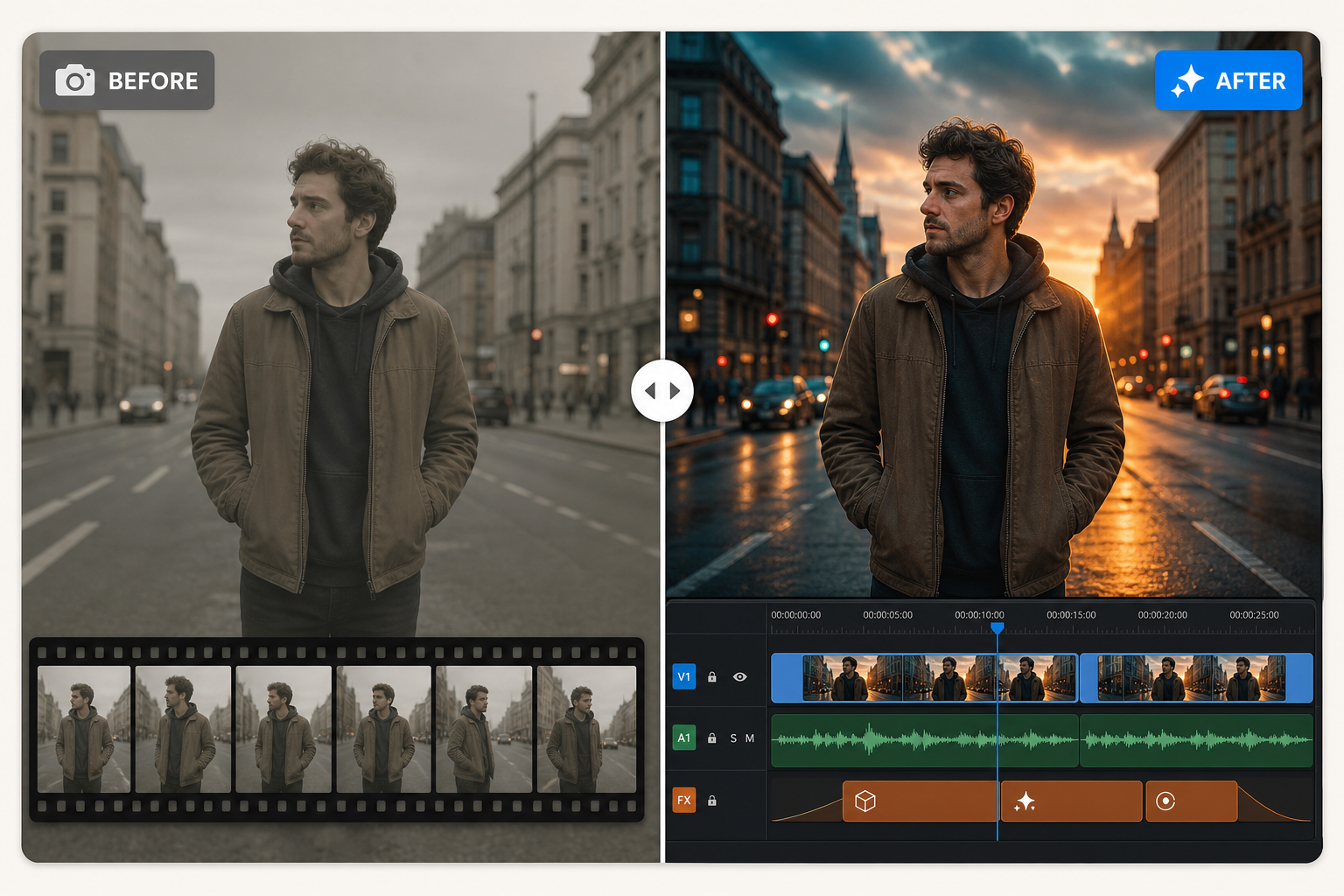
The Purpose of B-Roll (Get This Right First)
If you need a refresher on the definition, read what is B-roll first. In short, it's any supporting footage shown over or between your main A-roll. Every B-roll shot should do at least one of these jobs:
- Illustrate what's being said
- Add context about place, time or people
- Create emotion or set a mood
- Hide an edit such as a cut-out pause or mistake
- Reset attention with a visual change
If a clip doesn't do any of these, it's decoration, and decoration distracts.
Step 1: Plan Your B-Roll Before You Shoot
The best B-roll is planned from the script. Go through your script or outline and mark every noun, action or claim that could be shown visually. Then turn those into a shot list:
| Script line | B-roll idea | Shot type |
|---|---|---|
| "I start every day by planning my content" | Hand writing in a notebook, calendar on screen | Insert close-up + screen recording |
| "Our team is based in Bangalore" | Office exterior, team at desks | Establishing wide + medium |
| "This mic costs under ₹3,000" | Mic on desk, rotating | Product detail shot |
| "The edit took six hours" | Timeline scrolling, sped-up screen recording | Timelapse screen capture |
| "That's when everything changed" | Slow push-in, door opening, light switching on | Mood / metaphor shot |
Aim for roughly one B-roll idea for every 5 to 10 seconds of A-roll in YouTube videos, and more often for Reels and Shorts.
Step 2: Shoot B-Roll That's Easy to Edit
- Hold each shot for 8 to 10 seconds. You'll only use 2 to 5, but you need clean in and out points.
- Add movement. A slow pan, push-in, slide or a moving subject looks far better than a static frame.
- Shoot variety. Wide, medium and close-up of the same action gives you options.
- Match your A-roll settings. Same frame rate, similar white balance and exposure so color matches.
- Shoot some at a higher frame rate (60 or 120 fps) so you can create smooth slow motion later. See how to slow down a video.
- Capture natural sound. The sizzle, the click, the footsteps. Layering it under the B-roll makes scenes feel real.
- Shoot extra. Generic shots of hands, tools, workspace and environment become a reusable B-roll library.
Step 3: Know When to Cut to B-Roll
Good editors cut to B-roll at specific moments, not randomly:
| Cut to B-roll when… | Why |
|---|---|
| The speaker mentions something visual | Show it the moment it's said; this is the most natural cue |
| You've made a cut in the A-roll | Covers the jump so the edit is invisible |
| The A-roll has been on screen for a while | A visual reset prevents attention drift |
| Explaining a process or list | One B-roll shot per step or item adds clarity |
| Transitioning to a new section | An establishing or mood shot signals a change |
Stay on the A-roll for emotional moments, important statements, jokes and calls to action. Viewers connect with faces, and B-roll at those moments weakens the impact.
Covering cuts is one of B-roll's most practical jobs. Our guide to the jump cut explains when hiding a cut matters and when a visible jump cut is actually better.
Step 4: Edit B-Roll Into Your Timeline
Lay down and lock your A-roll first
Finish your story edit on the A-roll before adding any B-roll. B-roll should follow the story, not drive it.
Place B-roll on the track above
Put B-roll on video track 2 (V2) directly above the A-roll. The top track is what viewers see, while A-roll audio keeps playing underneath.
Trim each shot to its best 2 to 5 seconds
Trim out shaky starts and ends. Match length to pacing: shorter shots feel energetic, longer shots feel calm. Our guide on how to trim a video covers precise trimming techniques.
Time cuts to speech and rhythm
Start B-roll slightly before or exactly on the word it illustrates. Cut on natural pauses, sentence ends or music beats.
Smooth the audio with J-cuts and L-cuts
Let the B-roll's natural sound start a beat early, or let the speaker's voice carry over into the B-roll. This is exactly what J-cuts and L-cuts are for.
Color match and add subtle motion
Match B-roll color to your A-roll. If a shot is static, add a slow digital zoom (100% → 110%) to give it life.
Add text where it helps
Labels, stats or keywords over B-roll reinforce the message. See how to add text to a video for readable, on-brand text.
Planning, shooting and placing B-roll takes hours per video.Let our editors do it for you. Start with a free 60-second edit.
Claim Your Free 60-Sec EditCreative Ways to Use B-Roll
- Montages: several short clips merged together and cut to music to show a journey, a day or a process.
- Timelapses and speed-ups: compress a 3-hour build into 5 seconds. Learn how to speed up a video.
- Reverse shots: a playful rewind effect or an "undo" visual. See how to reverse a video.
- Visual metaphors: a crumbling sandcastle for "losing momentum", a rocket launch for "growth".
- Split screens: A-roll on one side, B-roll on the other, especially in vertical formats.
- Match cuts: cut from a circle in the A-roll to a similar shape in the B-roll.
B-Roll by Format
| Format | B-roll frequency | Tips |
|---|---|---|
| YouTube long-form | Every 5 to 15 seconds | Mix B-roll with punch-in zooms and graphics |
| Reels / Shorts | Every 1 to 3 seconds | Vertical framing, fast cuts, keep the subject centered |
| Podcasts | Light | Reaction shots and visuals of topics; let conversations breathe |
| Brand films | Heavy | Cinematic, planned shots with consistent color |
| Tutorials | Constant | Screen recordings with zoom-ins and highlights |
Common B-Roll Mistakes
- Literal-only B-roll: showing a "phone" every time someone says phone gets repetitive. Mix literal and contextual shots.
- Generic stock overuse: the same handshake clip everyone uses kills credibility.
- B-roll during key moments: covering the speaker's face during emotional or important lines.
- Mismatched color: warm A-roll cutting to cold, blue B-roll feels jarring.
- Holding shots too long: static B-roll beyond 5 seconds drags.
- Unlicensed footage: clips pulled from films or other creators can trigger copyright claims.
When to Get Help With B-Roll
B-roll is often the most time-consuming part of an edit: finding the right moments, sourcing or shooting clips, trimming, color matching and timing. For creators publishing weekly, that can easily add several hours per video.
Working with a video editing agency in India like EditAtEase means your B-roll is planned, sourced and placed by editors who do it every day, so your videos look polished without adding hours to your week.
Frequently Asked Questions
How do you use B-roll in a video?
Place B-roll on the track above your main footage so it shows on screen while the main audio keeps playing. Cut to it when the speaker mentions something visual, to cover edits, or to reset attention, and keep each shot around 2 to 5 seconds.
How long should B-roll clips be?
Most B-roll shots work best at 2 to 5 seconds. Use shorter clips for energetic content like Reels and longer, slower shots for calm or cinematic videos.
How much B-roll should a video have?
For YouTube videos, aim for a visual change every 5 to 15 seconds using B-roll, zooms or graphics. Reels and Shorts often change visuals every 1 to 3 seconds. Podcasts and emotional content need less.
How do I shoot good B-roll?
Plan shots from your script, hold each shot for 8 to 10 seconds, add camera or subject movement, shoot wide, medium and close-up versions, match your A-roll settings, and capture natural sound.
When should you not use B-roll?
Stay on the speaker's face during emotional moments, important statements, jokes and calls to action. Viewers connect with faces, and B-roll at those moments can weaken the impact.
Stop Editing. Start Creating.
You record, we edit. EditAtEase turns your raw footage into scroll-stopping YouTube videos, Shorts, Reels and podcasts, so you post consistently and finally get your week back.