How to Edit Videos on a Laptop Without the Lag
A laptop is the sweet spot for most creators: powerful enough for YouTube and podcasts, portable enough to edit from a café or a client's office. But laptops have limits desktops don't: heat, battery, smaller screens and less storage. Here's how to set one up so editing feels smooth instead of painful.
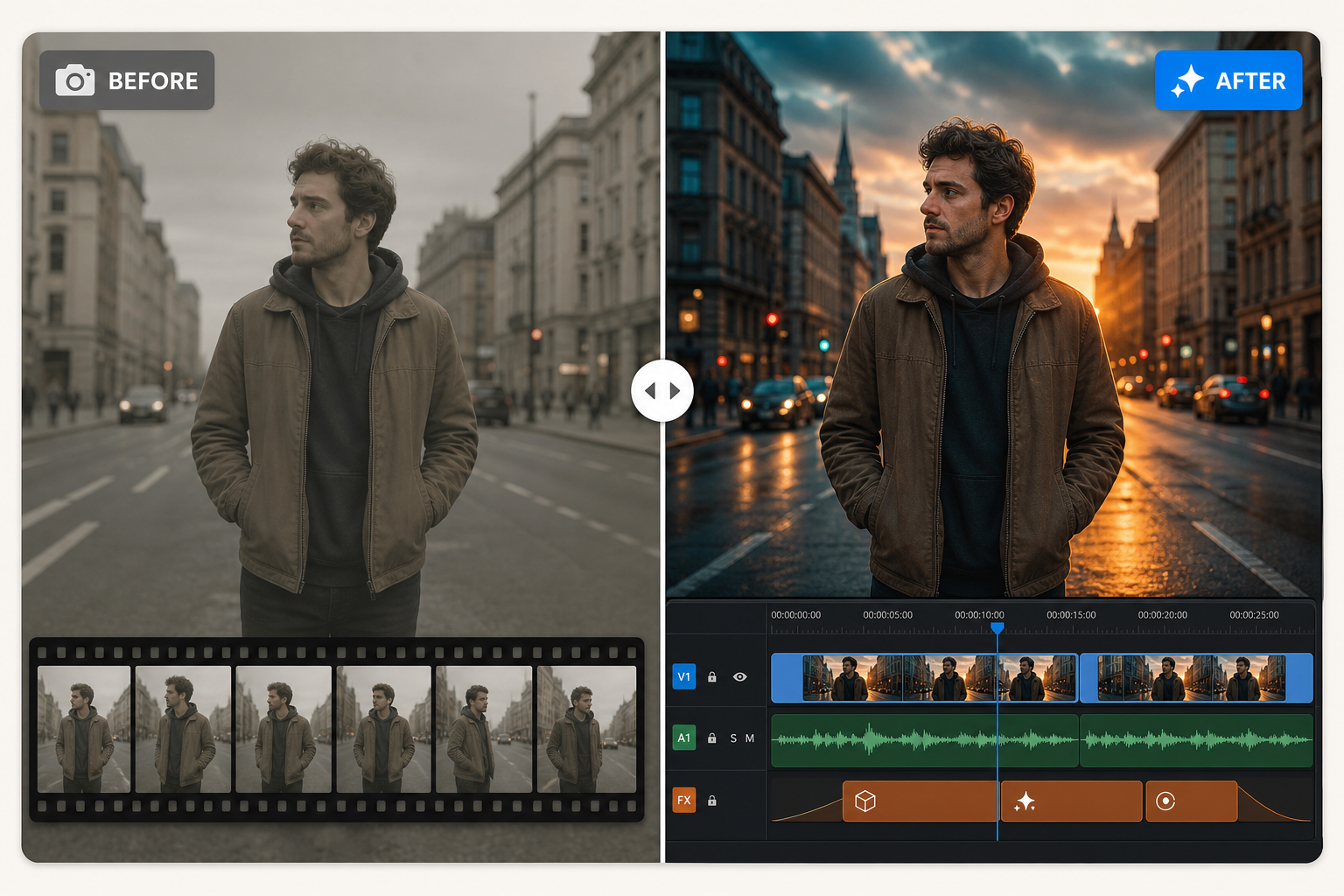
Can a Laptop Handle Video Editing?
Yes, and very well if you match the machine to the work. Modern laptops with Apple Silicon chips or recent Intel and AMD processors handle 1080p editing easily and 4K comfortably with the right settings. Problems usually come from three things:
- Too little RAM for the footage and effects you're using
- Slow or full storage, especially editing directly from a spinning external drive
- Heavy camera files (like long-GOP H.264/H.265 4K) without proxies
Fix those three and most laptops edit smoothly. If you're brand new to editing itself, start with our video editing for beginners guide; this article focuses on getting the most out of the hardware.
Laptop Specs for Video Editing
| Component | Basic (1080p Reels, short videos) | Recommended (YouTube, podcasts) | Pro (4K, multi-cam, heavy effects) |
|---|---|---|---|
| Processor | Recent Intel Core i5 / AMD Ryzen 5 / Apple M-series base | Core i7 / Ryzen 7 / Apple M-series Pro | High-end Core / Ryzen 9 / Apple M-series Max |
| RAM | 8 GB (16 GB preferred) | 16 GB | 32 GB or more |
| Graphics | Integrated graphics | Dedicated GPU with 6 GB+ VRAM, or Apple Silicon | Dedicated GPU with 8 GB+ VRAM, or higher-tier Apple Silicon |
| Internal storage | 512 GB SSD | 1 TB SSD | 1 to 2 TB SSD + fast external SSD |
| Display | Full HD | Full HD or higher, good color accuracy | High-resolution, color-accurate (close to 100% sRGB / DCI-P3) |
Software requirements change with each release; check your editor's official system requirements before buying.
If your budget forces a trade-off, prioritize RAM and an SSD over a slightly faster processor. You can add external storage later, but RAM is often soldered and can't be upgraded on thin laptops.
Best Video Editing Software for Laptops
| Software | Windows laptop | MacBook | Cost | Best for |
|---|---|---|---|---|
| DaVinci Resolve | Yes | Yes | Free; paid Studio version | Serious YouTube and podcast editing, color |
| Adobe Premiere Pro | Yes | Yes | Subscription | Professional work, Adobe ecosystem |
| Final Cut Pro | No | Yes | One-time purchase | Fast, efficient editing on Apple Silicon |
| iMovie | No | Yes | Free | Beginners on Mac |
| Clipchamp | Yes (built in) | Browser | Free tier + paid | Simple edits, templates |
| Shotcut / Kdenlive | Yes | Yes | Free, open source | Lightweight editing on older laptops |
Working on a Windows machine with zero budget? Our guide on how to edit videos on PC for free compares the free options in more depth.
How to Set Up Your Laptop for Editing
Plug in and switch to performance mode
Many laptops throttle the CPU and GPU on battery. Edit while plugged in, and set Windows to "Best performance" or turn off Low Power Mode on a MacBook.
Make sure your editor uses the right GPU
On Windows laptops with both integrated and dedicated graphics, open Graphics settings and set your editing app to "High performance" so it uses the dedicated GPU.
Keep media on a fast drive
Store active projects on your internal SSD or a fast external SSD connected via USB-C or Thunderbolt. Keep at least 15 to 20% of your internal drive free, because editors and the operating system need room for cache files.
Set your cache location
Point your editor's cache and render files to your fastest drive, and clear old cache regularly. Cache can quietly grow to tens of gigabytes.
Create proxies for heavy footage
Proxies are lightweight copies of your footage used only while editing. Your editor automatically swaps back to the full-quality originals at export. For 4K phone or mirrorless footage, proxies are the single biggest performance fix on a laptop.
Close everything else
Browsers with many tabs, cloud sync and chat apps eat RAM. Pause cloud syncing while editing and close what you don't need.
Editing Efficiently on a Laptop Screen
The editing process itself is the same as on any computer; our guide on how to edit videos walks through every step. What changes on a laptop is how you manage limited screen space and input:
- Use keyboard shortcuts heavily. J/K/L for playback, a key for cutting, ripple delete, and zoom in/out on the timeline. Trackpads are slow for precise edits.
- Simplify your workspace. Hide panels you don't use and save a custom "laptop" layout.
- Lower preview quality. Set playback resolution to half or quarter; it doesn't affect your export.
- Use an external mouse. A cheap mouse is far more precise than a trackpad for trimming.
- Connect an external monitor at your desk. Timeline on one screen, preview on the other.
Your laptop can handle the edit. Can your calendar?Send us your footage and get a free 60-second sample edit.
Claim Your Free 60-Sec EditAccessories That Make Laptop Editing Better
| Accessory | Why it helps | Priority |
|---|---|---|
| External SSD (1 TB+) | Fast storage for projects without filling your laptop | High |
| Closed-back headphones | Catch audio issues laptop speakers hide | High |
| Mouse | Precise trims and faster navigation | High |
| Laptop stand + cooling pad | Better airflow, less thermal throttling, better posture | Medium |
| External monitor | More screen space for timeline and preview | Medium |
| Backup hard drive | Cheap storage for archives and second copies | Medium |
Fixing Common Laptop Editing Problems
| Problem | Likely cause | Fix |
|---|---|---|
| Choppy playback | Heavy codecs, full-resolution preview | Use proxies and lower playback resolution |
| App crashes | Low RAM, outdated drivers, full drive | Close apps, update GPU drivers, free up space |
| Very slow exports | Hardware encoding off, on battery | Plug in, enable hardware (GPU) encoding |
| Laptop very hot and slowing down | Thermal throttling | Raise the laptop, use a cooling pad, clean vents |
| Audio out of sync | Variable frame rate phone footage | Convert to constant frame rate or use proxies |
| "Media offline" errors | Files moved or external drive disconnected | Reconnect the drive or relink media |
Many of these problems disappear entirely with good project organization. Our guide to the video editing workflow shows how professionals structure folders, proxies and backups so nothing goes missing.
Laptop vs. Phone vs. Desktop
Laptops balance power and portability. Phones are faster for quick Reels (see our guide on editing videos on your phone), while desktops offer more power per rupee, easier upgrades and better cooling for long 4K sessions. Many editors use a laptop on the go and a desktop or external monitor setup at home.
Next Steps
Once your laptop is set up, the next step is skill. Follow our structured plan on how to learn video editing, or compare options for a video editing course. If you're thinking about editing as a profession, see what a video editor does and our guide on how to become a video editor.
And if what you really need is finished videos rather than a faster laptop, a video editing agency in India like EditAtEase can take on the editing while you focus on recording and growing your audience.
Frequently Asked Questions
How much RAM do I need to edit videos on a laptop?
8 GB can handle simple 1080p edits, but 16 GB is the practical minimum for smooth YouTube and podcast editing. For 4K, multi-cam or heavy effects, 32 GB or more is recommended.
Can I edit 4K video on a laptop?
Yes. Most modern laptops with 16 GB RAM or more and a dedicated GPU or Apple Silicon chip can edit 4K, especially if you create proxy files for smooth playback and export from the original files.
Which is the best free video editing software for laptops?
DaVinci Resolve is the most powerful free editor for both Windows and Mac laptops. iMovie is easiest on a MacBook, and Clipchamp is the simplest option on Windows.
Why is my laptop lagging when I edit videos?
Common causes are heavy camera codecs, too little RAM, editing on battery power, a nearly full drive or the editor not using the dedicated GPU. Using proxies, plugging in and lowering playback resolution usually fixes it.
Is a MacBook or Windows laptop better for video editing?
Both work well. MacBooks with Apple Silicon offer excellent performance per watt, battery life and access to Final Cut Pro. Windows laptops give more choice, often better value and easier upgrades. Choose based on budget and the software you want to use.
Stop Editing. Start Creating.
You record, we edit. EditAtEase turns your raw footage into scroll-stopping YouTube videos, Shorts, Reels and podcasts, so you post consistently and finally get your week back.