How to Edit Videos on PC for Free (No Watermark)
You don't need to pay for software to make professional-looking videos on your PC. Some of the most capable editors in the world are free, with no watermark and no time limit. The trick is choosing the right one for your skill level and your computer, and avoiding "free" apps that stamp a logo on your export.
Is Free Video Editing Software Good Enough?
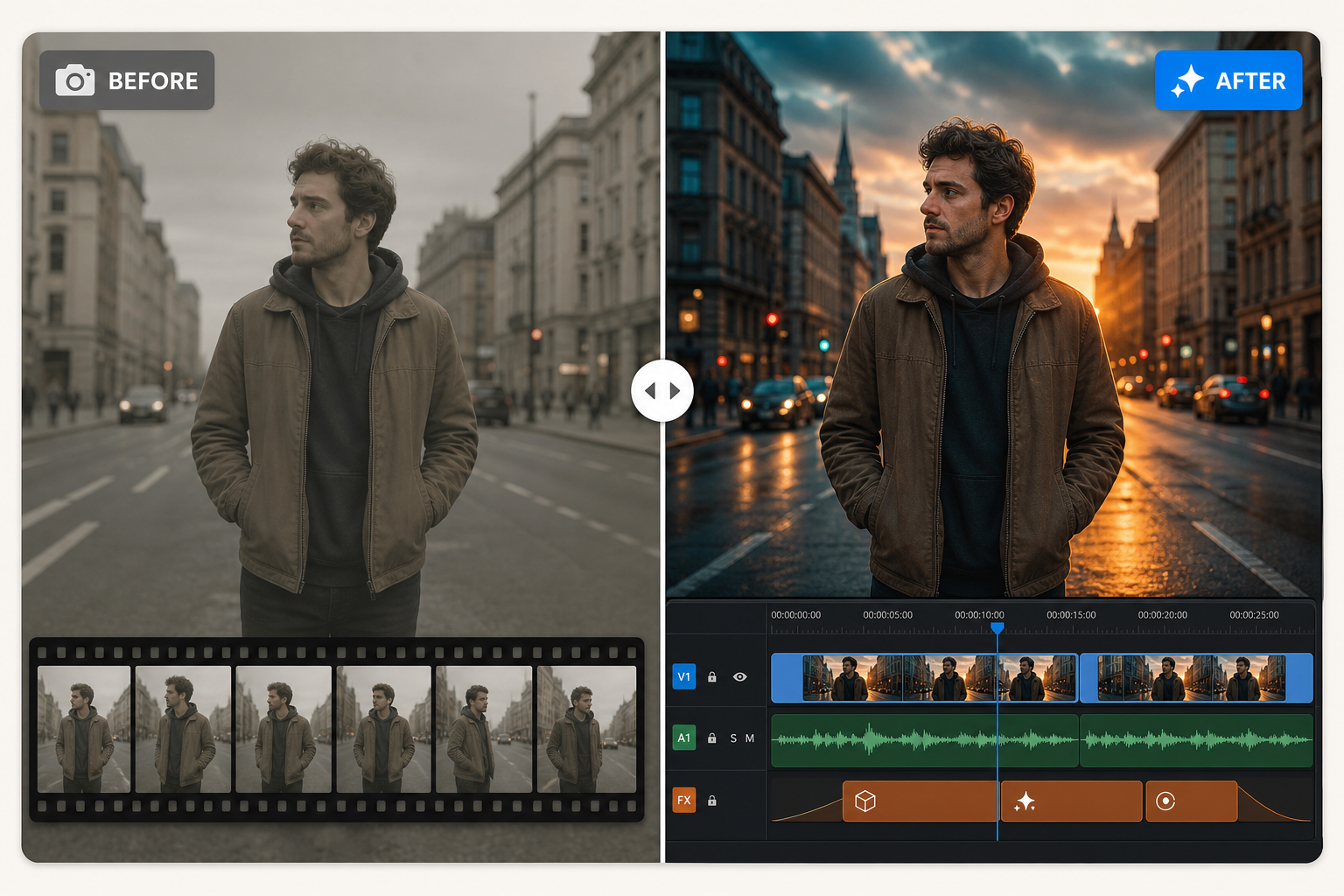
For most creators, yes. Free editors today handle multi-track timelines, 4K footage, color correction, audio cleanup and captions. Many YouTubers with large audiences still edit entirely in free software. Paid versions mainly add advanced effects, extra AI tools, collaboration features or better hardware acceleration.
What matters far more than price is technique. If you're new, our guide to video editing for beginners explains the essential concepts, and our main guide on how to edit videos covers the complete process.
Many editors advertise as free but add a watermark, limit export resolution or lock key features. Everything recommended below lets you export without a watermark.
Best Free Video Editors for Windows PC
| Software | Best for | Watermark | Difficulty | Min. PC needed |
|---|---|---|---|---|
| DaVinci Resolve (free) | YouTube, podcasts, color grading, anyone planning to go pro | None | Moderate to steep | 16 GB RAM, dedicated GPU recommended |
| Clipchamp | Quick edits, templates, beginners on Windows 11 | None on standard 1080p exports | Easy | Most modern PCs |
| Shotcut | Lightweight editing on older PCs | None | Moderate | Low |
| Kdenlive | Feature-rich open-source editing | None | Moderate | Low to medium |
| OpenShot | Very simple projects | None | Easy | Low |
Free plans and feature limits change; check each tool's official site before relying on a specific feature. CapCut is not available in India.
DaVinci Resolve: the most powerful free editor
Resolve is used on professional film and TV productions, and its free version is remarkably complete: editing, Hollywood-grade color tools, Fairlight audio, Fusion visual effects and export, all in one program. The trade-off is a steeper learning curve and higher hardware requirements. If you have a capable PC and want skills that transfer to professional work, choose this.
Clipchamp: the easiest start on Windows
Microsoft's Clipchamp comes built into Windows 11 and works in the browser. It's template-driven and drag-and-drop simple, with auto-captions and a stock library. It's ideal for quick social videos, presentations and first edits, but you'll outgrow it for complex YouTube projects.
Shotcut, Kdenlive and OpenShot: open-source options
These are completely free and open source, run on modest hardware and never add watermarks. Kdenlive is the most feature-rich of the three, Shotcut is reliable and light, and OpenShot is the simplest.
Which Free Editor Should You Pick?
| If you… | Choose |
|---|---|
| Want to become a professional editor | DaVinci Resolve |
| Need a quick social video today | Clipchamp |
| Have an older PC with 8 GB RAM or less | Shotcut or OpenShot |
| Want lots of features without Resolve's hardware needs | Kdenlive |
| Mostly post Reels and Shorts from your phone | A mobile app (see our phone editing guide) |
How to Edit a Video in DaVinci Resolve (Free): Step by Step
Install and create a project
Download DaVinci Resolve (not Studio) from Blackmagic Design's official website. Open it, create a new project, then go to Project Settings and set your timeline resolution and frame rate to match your footage, such as 1920×1080 at 30 fps. For vertical video, set 1080×1920.
Import media on the Media page
Drag your footage, music and graphics into the Media Pool. Organize into bins (folders) such as A-roll, B-roll and Audio.
Rough cut on the Cut or Edit page
Drag your main clip onto the timeline. Use the blade tool (B) or press Ctrl+B to split at the playhead, then select unwanted sections and ripple delete them with Shift+Delete.
Add B-roll, titles and music
Place B-roll on the video track above your main clip. Add titles from the Effects panel. Drop music on a separate audio track and lower its volume well below the voice.
Clean audio on the Fairlight page
Apply noise reduction and EQ to your voice track, use a compressor to even out levels, and keep peaks below 0 dB to avoid distortion.
Correct color on the Color page
Fix white balance and exposure first using the primary wheels and scopes, then apply a simple look. Keep skin tones natural.
Export on the Deliver page
Choose the YouTube preset or set MP4 / H.264 manually, confirm resolution and frame rate, add to the render queue and click Render All.
If playback stutters, right-click your clips and generate optimized media or proxy media, and set playback resolution to half or quarter. Our guide to editing videos on a laptop covers more performance fixes that apply to PCs too.
Quick Alternative: Editing in Clipchamp
- Open Clipchamp from the Start menu (or in your browser) and create a new video.
- Set the aspect ratio: 16:9 for YouTube, 9:16 for Shorts and Reels.
- Import your media and drag clips onto the timeline.
- Use the split tool to cut out pauses and mistakes.
- Add text, music and auto-captions from the left sidebar.
- Export at 1080p.
Free software saves money. A dedicated editor saves time.See what a professional edit of your own footage looks like, on us.
Claim Your Free 60-Sec EditFree Music, Footage and Fonts
| Asset | Free sources | Licensing note |
|---|---|---|
| Music | YouTube Audio Library, Pixabay Music | Check attribution requirements per track |
| Stock footage | Pexels, Pixabay, Mixkit | Read each site's license; avoid recognizable brands and people in ads |
| Sound effects | YouTube Audio Library, Freesound | Licenses vary per sound on Freesound |
| Fonts | Google Fonts | Open licenses, safe for commercial use |
| Audio editing | Audacity | Free, open-source audio editor |
| File conversion | HandBrake | Free, open-source video transcoder |
Never use copyrighted Bollywood or film music in YouTube videos unless you have a license. It can lead to copyright claims, blocked videos or demonetization.
Minimum PC Specs for Free Editing
- Light editors (Clipchamp, Shotcut, OpenShot): a recent quad-core CPU, 8 GB RAM, an SSD.
- DaVinci Resolve: 16 GB RAM (32 GB for 4K), a dedicated GPU with ample VRAM, and an SSD for media and cache.
- Everyone: keep your graphics drivers updated and at least 20% of your drive free.
Limitations of Free Software (and When to Upgrade)
Free tools can take you very far. You'll typically consider paid software when you need advanced AI features, team collaboration, certain hardware acceleration or effects, or a specific tool a client requires. Until then, invest your money in a good microphone and your time in learning.
To build skill quickly, follow our 90-day plan on how to learn video editing, or compare options for a video editing course. Once you're comfortable, organizing your projects with a proper video editing workflow makes every edit faster.
If you enjoy it enough to consider it professionally, read what a video editor does and how to become a video editor. Many professionals started exactly where you are: a free editor and a PC.
For businesses that need regular, polished video without building an in-house team, a video production agency in Bangalore like EditAtEase can handle the editing end to end.
Frequently Asked Questions
What is the best free video editor for PC without a watermark?
DaVinci Resolve is the most powerful free editor with no watermark. Clipchamp is the easiest for beginners on Windows 11, and Shotcut, Kdenlive and OpenShot are free, open-source options that also export without a watermark.
Does Windows have a built-in video editor?
Yes. Windows 11 includes Clipchamp, a free, beginner-friendly editor with templates, auto-captions and a stock library that exports standard 1080p video without a watermark.
Is DaVinci Resolve really free?
Yes. The free version of DaVinci Resolve has no watermark or time limit and includes editing, color, audio, effects and export tools. The paid Studio version adds advanced features, extra AI tools and additional hardware acceleration.
Can I edit videos on a low-end PC for free?
Yes. Shotcut, OpenShot and Clipchamp run well on PCs with 8 GB of RAM. Keep projects at 1080p, close other apps and use proxy files if playback is slow.
Where can I get free music for my videos?
The YouTube Audio Library and Pixabay Music offer free tracks that are safe to use, though some require attribution. Always check the license for each track, and avoid using copyrighted film music without permission.
Stop Editing. Start Creating.
You record, we edit. EditAtEase turns your raw footage into scroll-stopping YouTube videos, Shorts, Reels and podcasts, so you post consistently and finally get your week back.